Status
Applies to version: Version 7.x
Under the “Status” menu, you can access a clear and up-to-date overview of the current synchronization status at any time. Here, you can instantly see which of your Outlook® folders are currently being synchronized and in which direction the data is being exchanged — whether from server to client, from client to server, or bidirectionally.
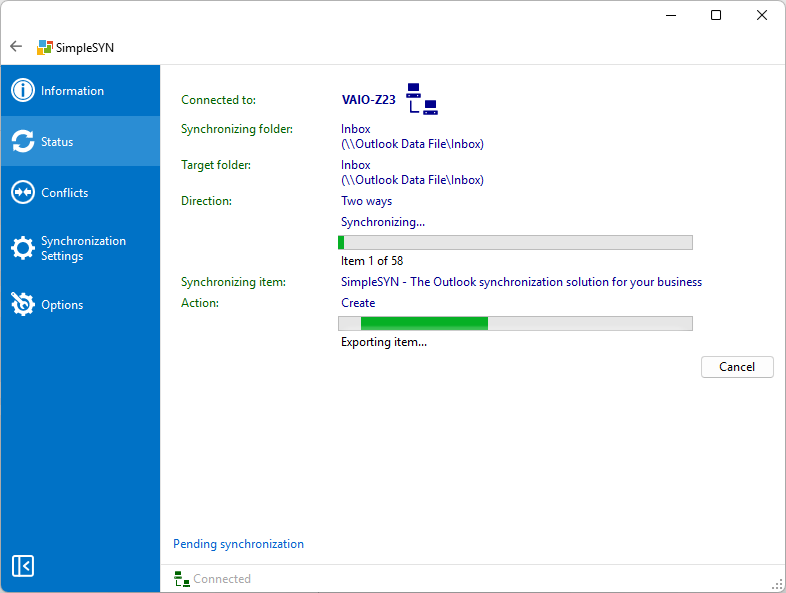 Image 1: status overview
In the status display, you not only get an overview of ongoing synchronizations, but also notifications and warnings about potential issues — such as detected firewall settings or connection errors. These messages help you identify technical problems early and take targeted action to resolve them.
It is possible to cancel the synchronization of a single Outlook® folder. Click on “Cancel” to stop the synchronization of an Outlook® folder. The data in the affected folder will not be synchronized completely.
You also have the option to manually cancel the synchronization of individual Outlook® folders. To do this, simply click “Cancel” next to the corresponding folder.
Please note: The affected folder will no longer be fully synchronized, which may result in inconsistencies in the data.
Pending synchronization
To view all Outlook® folders currently marked for synchronization by SimpleSYN, click on the “Status” menu and then select “Pending Synchronization.”
If you want to exclude a specific folder from synchronization, follow these steps:
- Right-click on the desired folder in the list.
- In the context menu that appears, select “Do not synchronize.”
The folder will then be removed from the list and will no longer be considered for synchronization.
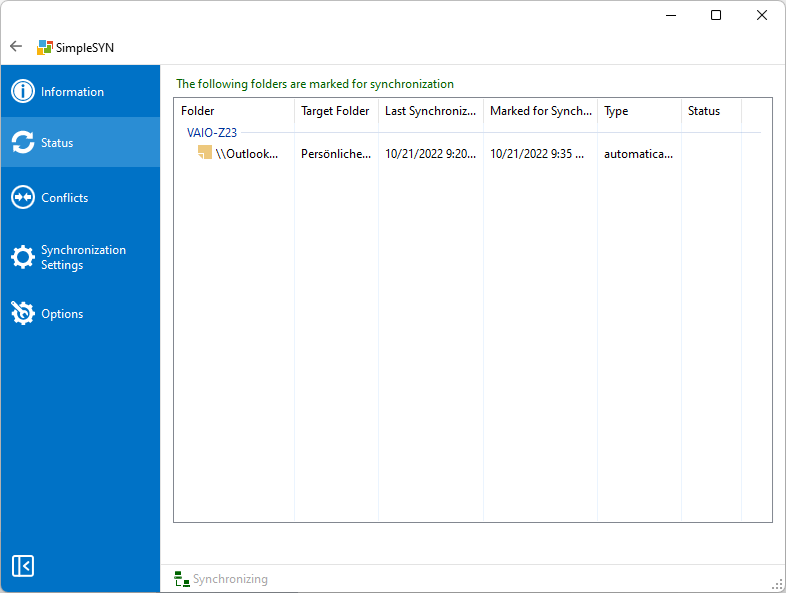 Image 2: Folders due for synchronization