Installation
Applies to version: Version 7.x
The installation of SimpleSYN requires only a few steps. A wizard will guide you through the installation. Please follow these steps:
- Start the computer on which you want to install SimpleSYN.
- Download the latest version of SimpleSYN from the download area.
- Double-click the downloaded setup file (e.g., “SimpleSYN.exe” or “SimpleSYN_Business.exe”) to begin the installation.
- Follow the instructions provided by the installation wizard to complete the setup.
Upgrade
An existing SimpleSYN installation will be replaced by the installation.
Note about upgrading from version 6:
All data and configurations are automatically transferred.
Note about upgrading from version 5:
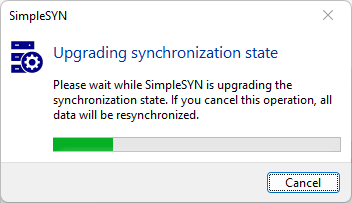
All data is transferred during the upgrade from version 5 to version 7. The data transfer and the updating of the synchronization status takes place automatically during setup. Please do not cancel this process, otherwise all data will be resynchronized.
When upgrading from older versions, SimpleSYN must be set up again. The initial synchronization will be run through once again.
How to Unistall
To remove SimpleSYN from the computer, close Outlook® and SimpleSYN.
Windows 11:
- Select the Windows Start button and then go to "Settings > Apps > Installed Apps".
- Locate the entry "SimpleSYN" and click "Remove" or "Uninstall".