Filter
Applies to version: Version 7.x
With the Business version of SimpleSYN, you can apply filters to the Outlook® folders you want to synchronize. This allows you, for example, to exclude private items from synchronization.
If an Outlook® folder has been assigned a filter it will be marked with an filter icon in the synchronization settings.
Note: the filter function is only available in the SimpleSYN business version
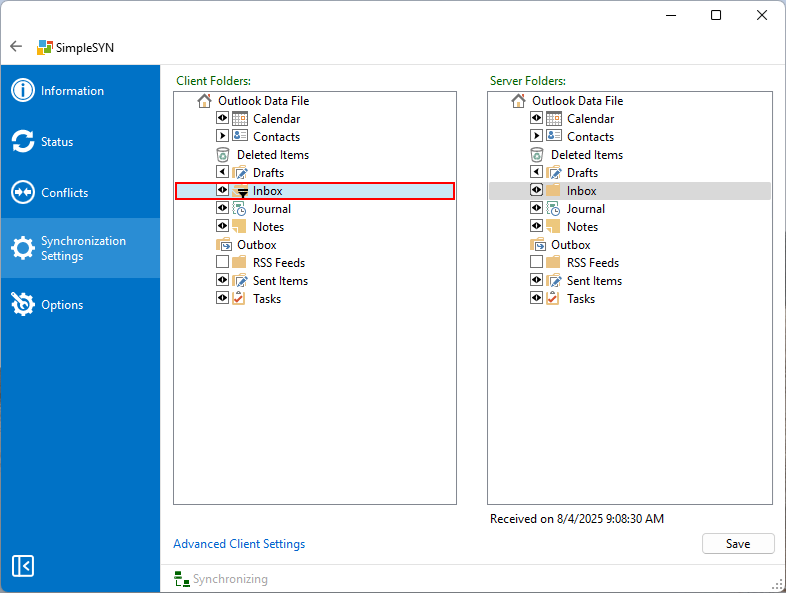 Image 1: Folder with allocated filter
To set a filter:
- Open SimpleSYN.
- Select “Synchronization Settings” from the menu.
- Right-click the Outlook® folder you want to filter.
- Then select “Filter…” from the context menu.
Filters can be applied either at the top level of a data store (e.g., a PST file) or to individual folders. If a filter is set at a higher level, it will automatically apply to all subfolders that do not have their own filter settings. This is especially useful when managing a main folder with multiple subfolders.
How the filter works
In the following dialog, you have the option to precisely define which items should be included in the synchronization. All items that do not match any of the defined rules will no longer be synchronized.
For example, if you do not want to synchronize your private appointments, set a filter in the calendar folder so that the sensitivity is set to “is not private”. SimpleSYN will then only synchronize items that are not marked as private.
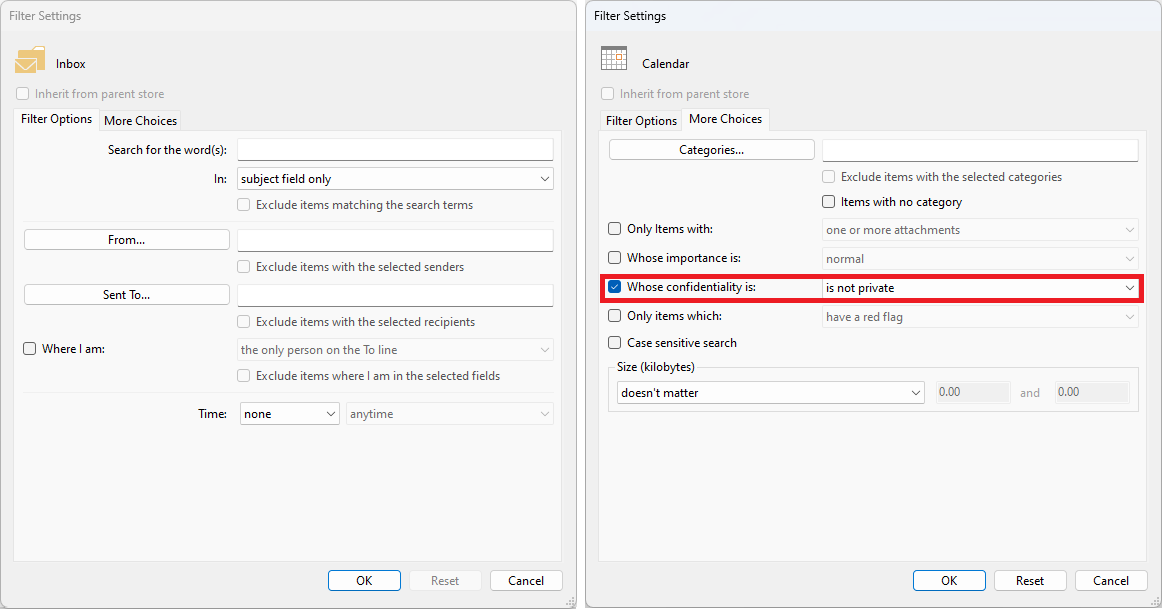 Image 2: Filter settings
Different filter settings in source and target folder
If the filter settings in the source and target folders are different, this can lead to unexpected behavior. Please note the following limitations:
-
New items from a non-filtered source folder will be synchronized to a filtered target folder, even if they match the filter rules there. In this case, the item will then be deleted from the source folder.
-
If items are synchronized from a non-filtered Outlook® folder to a filtered Outlook® folder and these items match the filter rules, duplicates may occur if the target folder already contains these items.
Filter settings
The following options are available for filtering an Outlook® folder or a data store:
If a filter has been assigned to the parent data store, the checkbox “Inherit from parent store” is enabled. Disable this checkbox if you want to override the top-level settings.
Click “Reset” to delete the inherited settings.
Click “OK” to apply the changes, or “Cancel” to discard the settings.
Filter options
Search for the word(s)
Searches for the search terms in the fields specified under “In”. Only items containing the search terms in the specified fields are synchronized.
From
Only items sent by the persons specified under “From…” are synchronized.
Click onto “From…” to open the address book.
Sent to
Only items sent to the specified persons under “Sent to…” are synchronized.
Click onto “Sent to…” to open the address book.
Organized by
Only appointments organized by the specified persons under “Organized by…” are synchronized.
Click onto “Organized by…” to open the address book.
Attendees
Only appointments having the specified persons as attendees stated under “Attendees…” are synchronized.
Click onto “Attendees…” to open the address book.
E-mail
Only contacts having an e-mail address specified under “E-mail…” are synchronized.
Click onto “E-mail…” to open the address book.
Contact
Only journal entries allocated to a specified contact are synchronized.
Click onto “Contact…” to open the address book.
Status
Only tasks having the specified status are synchronized.
Journal type
Only journal entries having the specified type are synchronized.
Where I am
Only items having the specified criteria from the list are synchronized.
Time
Only items conforming to the specified time criteria are synchronized.
More Choices
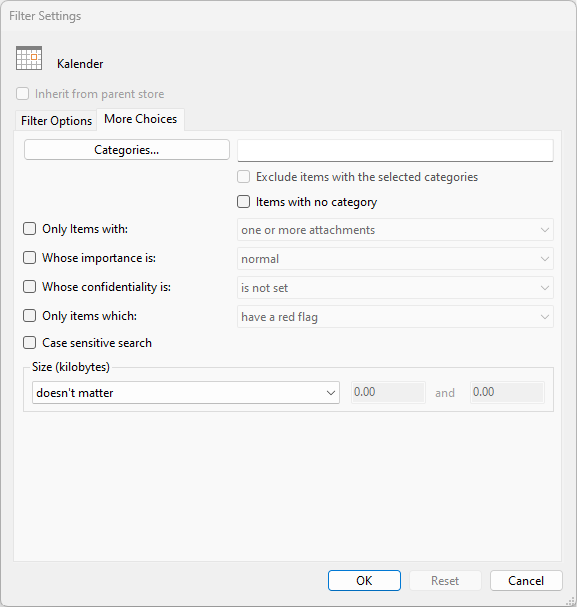 Image 3: Further filter options
Categories
Only items in a specified category are synchronized.
Click on “Categories…” to select the categories.
Items with no category
If activated, only item without a category is synchronized.
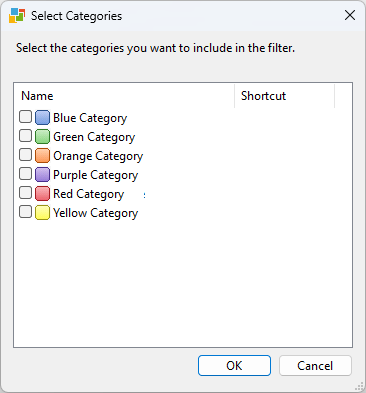 Image 4: Select categories
Only items with
Only items with attachments or items without attachments are synchronized.
Whose importance is
Only items with the specified priority are synchronized.
Whose confidentiality is
Only items with the specified confidentiality are synchronized.
Labels
Only items with the specified labels are synchronized.
Case sensitive search
If the checkbox “Case sensitive search” is activated all text input is searched in the entered spelling. Otherwise case sensitivity is
Size
Only items in the specified size are synchronized.