Configuration export/import
Applies to version: Version 7.x
Configuration Export and Import
SimpleSYN provides the ability to export your configuration settings to a file and import them on another computer or as a backup. This feature helps you:
- Backup your settings before making changes
- Transfer configurations to a new computer
- Share configurations with team members
- Restore settings after reinstalling SimpleSYN
Exporting Your Configuration
How to Export
- Open the Export Dialog
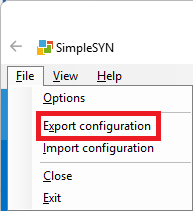
- Open SimpleSYN and briefly press the 'Alt' key once to open the main menu
- Click on 'File' in the menu, then select 'Export Configuration'
- Choose Export Location
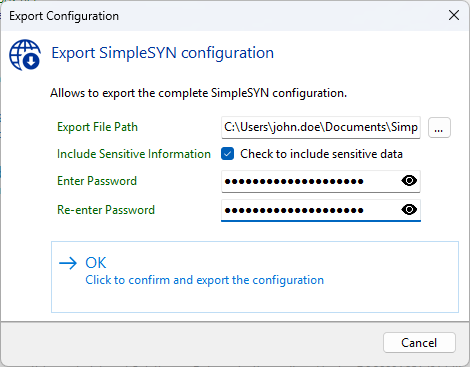
- Click the Browse button to select where to save your configuration file
- Choose a memorable location (like your Documents folder)
- The file will be saved with a
.zipextension
-
Configure Export Options
- Include Sensitive Information - Check this option if you want to include passwords, certificates, and other sensitive information
- Important: When this option is enabled, you must set a password to protect the exported file
- If unchecked, only non-sensitive configuration settings will be exported
- Password Protection (when including sensitive data)
- Enter a strong password in the Password field
- Confirm the password in the Repeat Password field
- Remember this password - you'll need it when importing the configuration
- The password encrypts all sensitive data in the export file
- Include Sensitive Information - Check this option if you want to include passwords, certificates, and other sensitive information
- Complete the Export
- Click OK to start the export process
- The system will create a file containing your configuration
What Gets Exported
Always Included:
- Synchronization profiles and folder mappings
- General application settings and preferences
- Server connection settings (without passwords)
- Sync rules and filters
Included Only When "Include Sensitive Information" is Checked:
- Account passwords
- Security certificates
- Encrypted connection details
- Any other sensitive authentication information
Importing a Configuration
How to Import
-
Open the Import Dialog
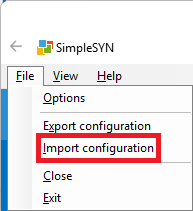
- Open SimpleSYN and briefly press the 'Alt' key once to open the main menu
- Click on 'File' in the menu, then select 'Import Configuration'
-
Select Configuration File
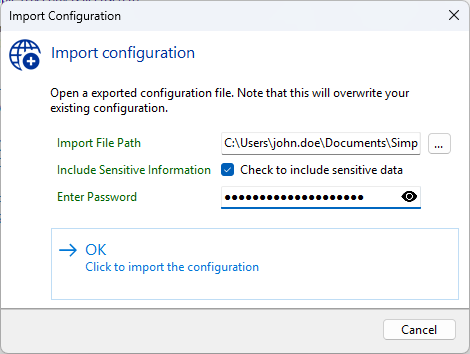
- Click the Browse button to locate your configuration file
- Navigate to where you saved the exported configuration
- Select the
.zipfile you want to import
-
Configure Import Options
- Include Sensitive Information - Check this option if you want to import passwords and other sensitive information
- If the file contains sensitive data but this option is unchecked, only non-sensitive settings will be imported
- Password (for encrypted files)
- If the configuration file is password-protected, enter the password here - This must be the same password that was used when exporting the configuration - Leave blank if the file is not password-protected
- If the configuration file is password-protected, enter the password here - This must be the same password that was used when exporting the configuration - Leave blank if the file is not password-protected
- Include Sensitive Information - Check this option if you want to import passwords and other sensitive information
- Complete the Import
- Click OK to start the import process
- Important: SimpleSYN will restart automatically to apply the new configuration
- All existing settings will be replaced with the imported configuration
Important Notes About Importing
- Backup First: Consider exporting your current configuration before importing a new one
- Application Restart: SimpleSYN will automatically close and restart to apply the imported settings
- Complete Replacement: The import process replaces your current configuration entirely
- Password Required: If you see an error about a password being required, the file was exported with sensitive data protection
Certificate and Server Identity Behavior
Understanding how SimpleSYN handles certificates and server identity during export/import is crucial for proper operation:
Server Identity and Certificates
- Server Identity: Each SimpleSYN installation has a unique certificate that serves as its identity
- Server Discovery: This certificate is used by clients to locate and identify a specific SimpleSYN server
- Network Recognition: The certificate determines the server name and ID that clients connect to
Certificate Import Behavior
When Certificates Are Included in Import:
- If "Include Sensitive Data" is checked and the export contains certificates, they will be imported
- The imported certificates maintain the original server identity
- Existing clients can continue connecting without changes
When Certificates Are NOT Included in Import:
- If "Include Sensitive Data" is unchecked, certificates are excluded from import
- A new certificate is automatically created for the installation
- Important: This changes the server identity, requiring all clients to be reconnected
New Computer Detection
SimpleSYN automatically detects when a configuration is being imported to a new computer by comparing machine names:
Same Computer Import
- Machine name matches the original export
- Certificates are imported if available
- Server identity is preserved
- Clients maintain existing connections
New Computer Import:
- Machine name differs from the original export
- A new certificate is automatically created regardless of import settings
- Server identity changes (new server name and ID)
- All clients must be reconnected to the new server
Important Implications for Server Administrators
If you're migrating a SimpleSYN server to a new computer or if you disabled 'Include Sensitive Information' during export:
- All connected clients must reconnect
- Plan for client downtime during the migration
- Communicate the change to all users who sync with your server
- Update any automated sync configurations that reference the old server
If you're restoring on the same computer:
- Ensure "Include Sensitive Information" is checked during both export and import
- This preserves the server identity and maintains client connections
Security Considerations
Password Protection
- Use Strong Passwords: Choose passwords that are difficult to guess
- Store Passwords Securely: Remember or safely store the password used for encryption
- Lost Passwords: If you forget the password, the sensitive data in the export cannot be recovered
File Security
- Secure Storage: Store exported configuration files in a secure location
- Encrypted Files: Files with sensitive data are automatically encrypted when password-protected
- Unencrypted Files: Files without sensitive data are not encrypted but still contain configuration details
Troubleshooting
Common Issues
"Password Required" Error
- The configuration file is encrypted and needs the password used during export - Enter the correct password in the Password field during import
Settings Don't Appear After Import
- The import process requires SimpleSYN to restart - If the restart didn't happen automatically, manually restart the application
Clients Can't Connect After Import
- This typically happens when importing to a new computer or when certificates weren't included
- The server identity has changed and all clients need to be reconnected - Reconfigure each client with the new server connection details
File Format
Configuration files are stored in a compressed format with the following characteristics:
- File Extension:
.zip(or custom extension you choose) - Format: Compressed archive containing XML configuration data
- Encryption: AES encryption when password-protected
- Compression: Built-in compression for smaller file sizes
The exported file is completely self-contained and includes everything needed to restore your SimpleSYN configuration on another computer.