Synchronization conflicts
Applies to version: Version 7.x
In SimpleSYN, synchronization conflicts can arise in two situations:
1. Conflicts with unsynchronized items (e.g., during initial synchronization)
Conflicts occur when seemingly identical items exist on multiple PCs but differ in certain properties.
Example: An appointment is marked with the category "Blue" on PC 1 and "Yellow" on PC 2.
During the initial synchronization, SimpleSYN detects this difference as a conflict.
- Default setting:
- The conflict is resolved automatically.
- SimpleSYN synchronizes the most recent item (based on the local system time).
- No conflict notification is displayed.
- The overwritten item is backed up and can be restored at any time from the SimpleSYN backup folder.
2. Conflicts with already synchronized items
Conflicts occur when an item that has already been synchronized is modified on multiple PCs without an intermediate synchronization. This can happen, for example, if a PC was turned off or SimpleSYN was not active on one computer.
- Default setting:
- SimpleSYN displays a conflict notification.
- Conflicts must be resolved manually in the "Conflicts" section.
If conflicts occur during synchronization and you have selected manual conflict resolution, SimpleSYN will notify you via a message in the Windows® notification area.
 Image 1: conflicts have occurred
Manual conflict resolution
If you have selected the "Manual Conflict Resolution" option, SimpleSYN offers various ways to resolve synchronization conflicts under the "Conflicts" menu.
In the overview, you can see all detected conflicts at a glance. By double-clicking an entry, you open a detail window where you can specify how SimpleSYN should handle the respective conflict.
Alternatively, you can right-click on a conflict entry to open a context menu. This menu offers the following options:
- Resolve conflict manually
- Open Outlook® item
- Refresh view
- Reset resolved conflicts to reprocess them with a different setting
This way, you always maintain control over synchronization and can resolve conflicts in a targeted and individual manner.
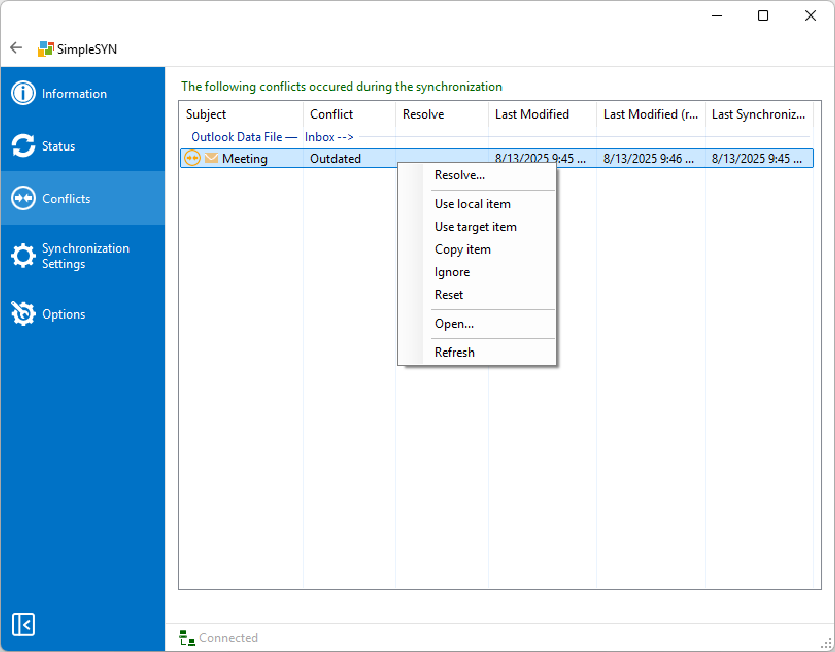 Image 2: List of synchronization conflicts
A conflict cannot be resolved if it has been handled differently on multiple computers. In such cases, synchronization is not possible.
 |
No decision has been made regarding conflict resolution. |
 |
The conflict has been resolved, but synchronization is still pending. |
 |
The conflict has been handled differently on multiple devices and therefore cannot be synchronized. |
Modification conflict
A modification conflict occurs when an Outlook® item is changed simultaneously on two or more computers. Since SimpleSYN cannot automatically determine which version should be retained, the conflict must be resolved manually.
Even seemingly minor changes like these can lead to a modification conflict if they are made simultaneously on multiple computers.
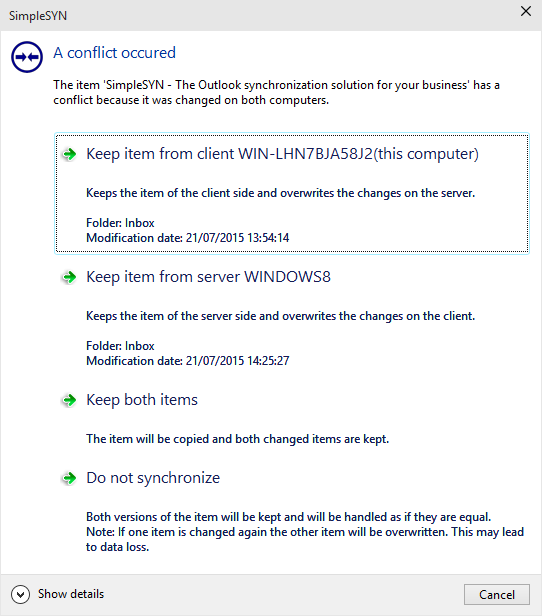 Image 3: dialog of conflict solution
If an item has been modified on both the client and the server, you can resolve the conflict using one of the following options:
-
Keep item from client
The version of the item from the client will be retained. Changes on the server will be overwritten. -
Keep item from server
The version of the item from the server will be retained. Changes on the client will be overwritten. -
Keep both items
The item will be duplicated, and both modified versions will be retained. -
Do not synchronize
Both versions will be kept but not synchronized further. They are considered equivalent and remain unchanged.
Deletion conflict
A deletion conflict occurs when an Outlook® item is deleted on one computer but modified on another.
Even seemingly minor changes like these can lead to a modification conflict if they are made simultaneously on multiple computers.
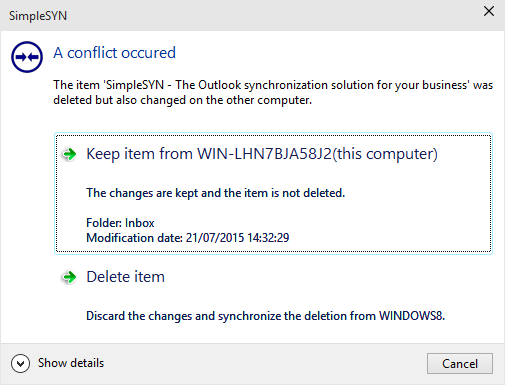 Image 4: Dialog of conflict solution
To resolve the conflict, choose one of the following options:
-
Keep item
The changes will be retained, and the item will not be deleted. -
Delete item
The changes will be discarded, and the deletion will be synchronized.